
Linux & Dev Environment · Lesson 03
Files & Directories
Est. 35–45 min
Why
Why a tidy folder tree is a safety feature
A robot project has code, configuration, calibration, scripts and logs. If they are mixed in one folder, sooner or later someone overwrites the calibration file or deletes yesterday’s log that explained a crash. A clean tree is part of safety and reproducibility.
Concept
The big idea: one tree, absolute and relative paths
Linux has one single tree that starts at the root /. There are no C: or D: drives — USB sticks and extra disks are attached (mounted) somewhere inside this same tree.
| Folder | Meaning | Robot example |
|---|---|---|
/home/ashish (~) | Your personal space | ~/robot_ws — your project |
/dev | Devices as files | /dev/ttyUSB0 serial, /dev/video0 camera |
/etc | System settings (text files) | /etc/hostname, network config |
/usr/bin | Installed programs | python3, git |
/opt | Big add-on software | /opt/ros/jazzy (ROS 2) |
/var/log | System logs | Kernel messages about USB devices |
/tmp | Scratch space, may be wiped on reboot | Quick experiments only — never calibration |
- Absolute path starts with
/:/home/ashish/robot_ws/config/robot.yaml. Same meaning from anywhere. - Relative path starts from where you are: from
~/robot_ws,config/robot.yamlpoints to the same file. - Special names:
.= this folder,..= one level up,~= your home.
| Command | Does | Careful about |
|---|---|---|
mkdir -p a/b/c | Make folders (with parents) | -p means “no error if it exists” |
touch notes.txt | Create an empty file | Also updates the time of an existing file |
cp src dst | Copy | Overwrites dst silently; cp -i asks first |
mv old new | Move or rename | Also overwrites silently; mv -i asks |
rm file / rm -r folder | Delete | No recycle bin! Double-check with ls first |
find robot_ws -name '*.yaml' | Search by name | Quote the pattern |
realpath file | Show the absolute path | Great for debugging config paths |
How it works
How it actually works: resolving a path step by step
You stand in /home/ashish/robot_ws/src and type cat ../config/robot.yaml. Linux walks like this:
Start point
No leading
/, so start from the current directory:/home/ashish/robot_ws/src.“..”
Go up one level →
/home/ashish/robot_ws.“config”
Go down into
config→/home/ashish/robot_ws/config.“robot.yaml”
Pick the file →
/home/ashish/robot_ws/config/robot.yaml. Found, socatprints it.
The path navigator below does exactly this walk for any path you type. Change the current directory and watch relative paths change meaning while absolute ones stay fixed.
Visual
Visualise it: path navigator
Choose where you stand (pwd), then type or pick a path. Watch each hop — “..” goes up, a name goes down — and see the absolute answer highlighted in the tree.
Interactive · Path navigator (absolute vs relative)
Pick where you are standing, then a path. Absolute paths (start with /) give the same answer from anywhere; relative paths depend on where you stand.
- 1. relative → begin where you stand: /home/ashish/robot_ws/src
- 2. “..” → go up one level → /home/ashish/robot_ws
- 3. “config” → /home/ashish/robot_ws/config
- 4. “robot.yaml” → /home/ashish/robot_ws/config/robot.yaml (file)
→ /home/ashish/robot_ws/config/robot.yaml (file)
/ (root)
- home/
- ashish/
- robot_ws/
- src/ ← you are here
- robot_controller.py
- config/
- robot.yaml
- scripts/
- bringup.sh
- logs/
- session.log
- src/ ← you are here
- Downloads/
- robot_ws/
- ashish/
- dev/
- ttyUSB0
- video0
- etc/
- hostname
- tmp/
Worked example
Worked example: the recommended robot workspace
robot_ws/
├── src/          # your Python / C++ code (in Git)
├── config/       # robot.yaml, limits, calibration (in Git, small text)
├── scripts/      # bringup.sh, shutdown.sh (in Git)
├── logs/         # run logs, NOT in Git (can grow big)
└── .venv/        # Python virtual env, NOT in Git (Lesson 11)
Rule of thumb: code and config are precious, logs are disposable, environments are rebuildable. That one sentence decides what you back up, what goes into Git and what you can delete safely.
Code lab
Code lab: build the tree for real
Run bash workspace_tree.sh. It works inside /tmp/aihub-lab/files-demo, so your real home folder stays untouched.
#!/usr/bin/env bash
# workspace_tree.sh — build a clean robot project tree (Lesson 3)
# Safe: everything happens inside /tmp/aihub-lab/files-demo
mkdir -p /tmp/aihub-lab/files-demo && cd /tmp/aihub-lab/files-demo
mkdir -p robot_ws/src robot_ws/config robot_ws/scripts robot_ws/logs
touch robot_ws/src/robot_controller.py
echo "stop_distance_cm: 20" > robot_ws/config/robot.yaml
cat robot_ws/config/robot.yaml
cp robot_ws/config/robot.yaml robot_ws/config/robot.yaml.bak
mv robot_ws/config/robot.yaml.bak robot_ws/config/robot_backup.yaml
find robot_ws | sort
echo "Absolute path: $(realpath robot_ws/config/robot.yaml)"
Expected output
stop_distance_cm: 20
robot_ws
robot_ws/config
robot_ws/config/robot.yaml
robot_ws/config/robot_backup.yaml
robot_ws/logs
robot_ws/scripts
robot_ws/src
robot_ws/src/robot_controller.py
Absolute path: /tmp/aihub-lab/files-demo/robot_ws/config/robot.yaml
Devices as files
Explore: hardware lives under /dev
Click through the folders below, especially /dev. When you plug in a USB-serial cable, a new file such as /dev/ttyUSB0 appears; unplug it and the file disappears. Your Python code opens that “file” to talk to the Arduino.
Click /, home, etc, usr, var, opt, tmp and /dev to read what each folder is for on a robot.
Interactive · Linux filesystem explorer
dev(dir)
Device nodes — the kernel’s hardware face.
Robotics · Hardware appears as files: serial, cameras, GPIO.
Tip: in robotics, /dev is where hardware shows up as files you can open from Python.
Real world
Where these folders live on a real robot
~/robot_ws/— your project on both laptop and robot computer (keep the same layout on both)./var/log/andjournalctl— system logs that explain why a USB device disconnected./dev/ttyUSB0,/dev/ttyACM0,/dev/video0— serial adapters, Arduino boards and cameras./opt/ros/<distro>/— where ROS 2 is installed (Stage 10).
Mistakes
Common mistakes and debugging
Hardware & safety
Hardware lab and safety notes
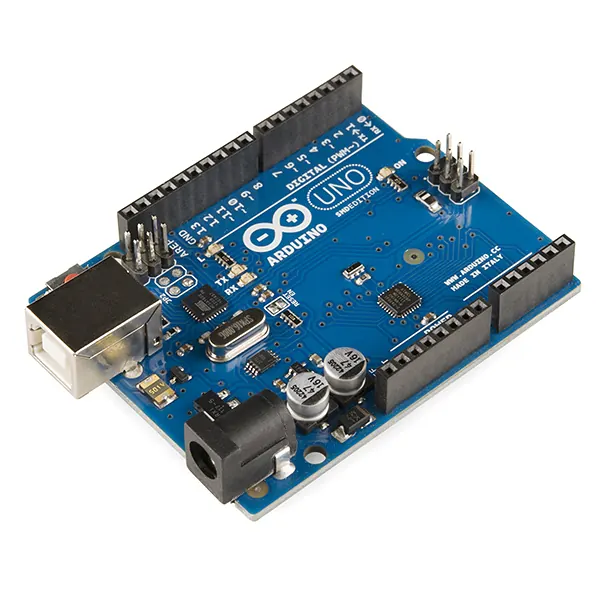
Hardware shows up as files under /dev. That is the bridge from “files and folders” to a real robot.
- Plug in an Arduino and run
ls -l /dev/ttyACM* /dev/ttyUSB*— note the owner and group (you will need them in Lesson 4). ls /dev/video*lists cameras;ls /dev/serial/by-id/gives a stable name that does not change when you replug.- Keep robot logs in
~/robot_ws/logs, not on the Desktop, and never write test files into/dev.
Debugging
Debugging: when it doesn’t work
| Symptom | Likely cause | Fix |
|---|---|---|
cd: robot_ws: No such file or directory | You are in a different folder | Run pwd; use the absolute path ~/robot_ws |
/dev/ttyUSB0 vanished | Board unplugged or reset | Replug, then ls /dev/serial/by-id/ |
| Spaces break your path | my robot is read as two words | Quote it: cd "my robot", or avoid spaces in names |
mkdir: cannot create directory | Parent folder missing | Use mkdir -p robot_ws/src/arm |
Think
Think about it
Think
Why should your controller read `config/robot.yaml` and not a hard-coded `/home/ashish/robot_ws/config/robot.yaml`?
Experiment
Try it in the lab: build and explore the tree
Two simulators plus one real script. Predict before you click.
Experiment
Build and explore the tree
You will need
- Path navigator
- Filesystem explorer
- Optional: Ubuntu terminal for workspace_tree.sh
Steps
- In the path navigator, set the current directory to `/home/ashish/robot_ws/src` and pick `../config/robot.yaml`. Note the final absolute path.
- Change the current directory to `/home/ashish`. Does the same relative path still work? Why not?
- Pick `/dev/ttyUSB0` and switch between all current directories — the answer never changes.
- Type `../../..` from `src` and predict where you land before looking.
- In the filesystem explorer, open `/dev` and read the robotics notes.
- On a real machine, run `workspace_tree.sh` and compare the output with the table above.
Interactive · Path navigator (absolute vs relative)
Pick where you are standing, then a path. Absolute paths (start with /) give the same answer from anywhere; relative paths depend on where you stand.
- 1. relative → begin where you stand: /home/ashish/robot_ws/src
- 2. “..” → go up one level → /home/ashish/robot_ws
- 3. “config” → /home/ashish/robot_ws/config
- 4. “robot.yaml” → /home/ashish/robot_ws/config/robot.yaml (file)
→ /home/ashish/robot_ws/config/robot.yaml (file)
/ (root)
- home/
- ashish/
- robot_ws/
- src/ ← you are here
- robot_controller.py
- config/
- robot.yaml
- scripts/
- bringup.sh
- logs/
- session.log
- src/ ← you are here
- Downloads/
- robot_ws/
- ashish/
- dev/
- ttyUSB0
- video0
- etc/
- hostname
- tmp/
Relative paths fail with “No such file or directory” when you stand in the wrong place. Absolute paths always resolve the same way.
Knowledge check
Check your understanding
Knowledge check
1. Device nodes like cameras usually appear under…
2. `mkdir workspace` creates…
3. Which is an absolute path?
4. You are in `/home/ashish/robot_ws/src`. `cd ../logs` takes you to…
5. Where should robot calibration files live?
Mini assignment
Hands-on assignment
Mini assignment
Workspace tree sketch
Design the folder tree for your own robot and justify each folder.
Deliverables
- A tree diagram of `~/robot_ws` with at least 5 folders
- For each folder: in Git or not, and why
- Three paths written both absolute and relative (from `~/robot_ws`)
Do this, step by step
- In the path navigator, go from
/home/ashishto/home/ashish/robot_ws/srcusing a relative path, then back with an absolute path. - Run
workspace_tree.shand compare with the expected tree. - Draw your own
~/robot_wstree with at least 5 folders and mark each “in Git” or “not in Git”. - Write three paths both ways (absolute and relative from
~/robot_ws).
Stuck? Hints, one at a time
- Hint 1: Absolute paths start with
/(or~); relative paths start from where you are now. - Hint 2:
..means one folder up;.means this folder. - Hint 3: Logs,
build/and.venv/usually stay out of Git;src/,config/andscripts/go in.
Challenges (pick by level)
- 🟢 Easy: Use
tree -L 2(orls -R) on your workspace. - 🟡 Medium: Find every
.pyfile under~/robot_wswithfind ~/robot_ws -name '*.py'. - 🟠 Hard: Use
/dev/serial/by-id/to write a path for your Arduino that survives replugging.
Next step
Look back: Lesson 2: Linux Terminal Fundamentals. Next: Lesson 4: Linux Permissions & Users. Related: Stage 10 — ROS 2 (ROS 2 workspaces use the same src/ layout).
Sources
- Filesystem Hierarchy Standard 3.0
- path_resolution(7) manual page
- ROS 2 Jazzy — Creating a workspace
- Photos: Wikimedia Commons (credits under each image).
Self-attested for now — keep artifacts in your lab notebook.
Complete
Today's goal
0 of 1 done today
Mark this lesson complete when you have worked the experiment, knowledge check, and assignment (even roughly).