
Linux & Dev Environment · Lesson 13
SSH & Remote Robotics Development
Est. 40–50 min
Why
Why you will rarely sit in front of the robot’s computer
The Jetson inside your robot has no monitor. SSH (Secure Shell) gives you its terminal from your laptop — encrypted, over the LAN you set up in Lesson 12. With it you run scripts, copy files and even use VS Code on the robot.
Concept
The big idea: a locked, encrypted terminal into another machine
ssh user@host— open a terminal on another machine. Example:ssh robot@192.168.1.42. The default port is 22.- First connection: SSH shows the robot’s host key fingerprint and asks “Are you sure you want to continue connecting?”. Saying yes stores it in
~/.ssh/known_hosts. If it ever changes unexpectedly, SSH warns loudly — stop and find out why. - Key pair:
ssh-keygen -t ed25519creates~/.ssh/id_ed25519(private — never share) and~/.ssh/id_ed25519.pub(public — safe to copy). ssh-copy-id robot@192.168.1.42appends your public key to the robot’s~/.ssh/authorized_keys. After that, no password prompt.~/.ssh/configgives a host a short name (ssh jetson).scpcopies files;rsyncsyncs folders and only sends what changed.
| Prompt | You are on |
|---|---|
ashish@laptop:~$ | Your laptop — commands run here |
robot@jetson:~$ | The robot — sudo reboot here reboots the robot! |
How it works
How it actually works: a key-based login, step by step
Connect
Your laptop opens a TCP connection to the robot’s port 22 (Lesson 12).
Check the robot’s identity
The robot proves it holds its host private key. Your laptop compares the fingerprint with
known_hosts.Encrypt
Both sides agree on a fresh session key. Everything after this — including your commands — is encrypted.
Prove who you are
The robot sends a challenge; your laptop signs it with your private key. The robot checks the signature using your public key in
authorized_keys. The private key itself never travels.Shell
You get
robot@jetson:~$. Typeexit(or Ctrl + D) to come back to your laptop.
Visual
Visualise it: SSH from laptop to Jetson
A fake SSH session: connect from the laptop to robot@192.168.1.42, compare hostname, pwd, ls and whoami on both sides, then exit. No real network or keys are used.
Interactive · Robot network & SSH
# robot network lab — simulated LAN only
# laptop (dev) ↔ Jetson (on-robot computer)
# try: ssh robot@192.168.1.42
Code lab
Code lab: the full laptop → robot workflow
Run these on your real laptop, one line at a time, with a Raspberry Pi or Jetson on the same network. Replace the IP with your robot’s address.
# ssh_workflow.sh — laptop -> robot, the safe way (run on your real laptop)
ssh-keygen -t ed25519 -C "ashish@laptop"     # 1. make a key pair (press Enter for default path)
ssh-copy-id robot@192.168.1.42               # 2. put your PUBLIC key on the robot
ssh robot@192.168.1.42                       # 3. log in (no password now)
ssh jetson                                   # 4. same, using the ~/.ssh/config alias
scp config/robot.yaml jetson:~/robot_ws/config/      # 5. copy one file
rsync -av --exclude .venv ./robot_ws/ jetson:~/robot_ws/   # 6. sync a whole folder
ssh jetson 'cd ~/robot_ws && ./scripts/bringup.sh sim'      # 7. run one command remotely
Save this as ~/.ssh/config so step 4 (ssh jetson) works:
# ~/.ssh/config on your LAPTOP (create the file if it does not exist)
Host jetson
    HostName 192.168.1.42
    User robot
IdentityFile ~/.ssh/id_ed25519chmod 700 ~/.ssh
chmod 600 ~/.ssh/id_ed25519 ~/.ssh/config
chmod 644 ~/.ssh/id_ed25519.pubReal world
Where SSH runs the robot lab
- Daily loop: edit on laptop →
rsyncto the robot →ssh jetson './scripts/bringup.sh real'→ watch logs. - Or edit directly on the robot with VS Code Remote-SSH.
- Field fixes: SSH from a phone or a teammate’s laptop (with their own key added).
- Each team member has their own key pair — remove one person’s key without changing anyone else’s.
Mistakes
Common mistakes and debugging
Hardware & safety
Hardware lab and safety notes
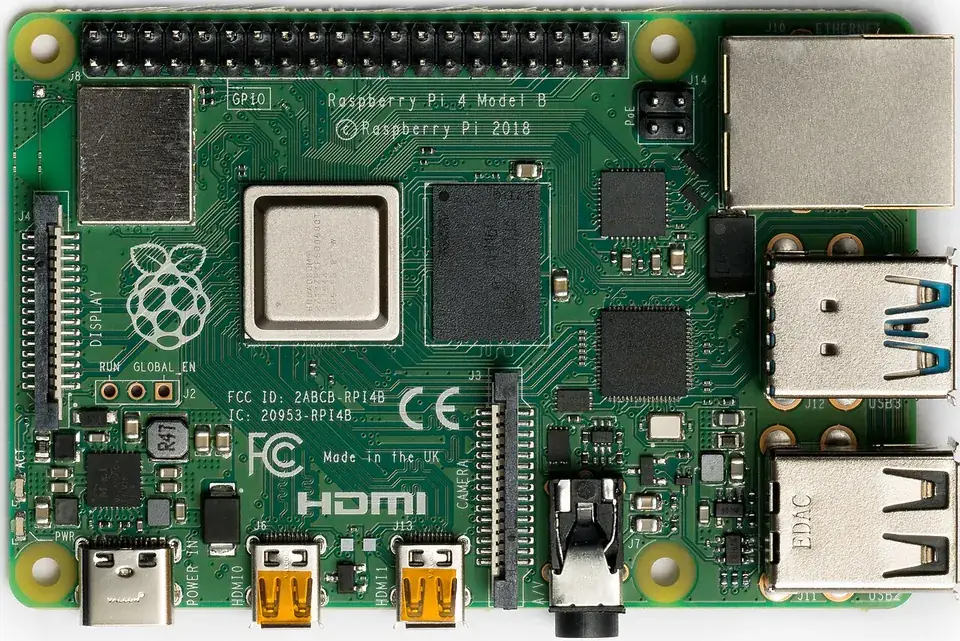
SSH is how you will work on a robot that has no screen: log in, copy code, run it, read logs.
- Raspberry Pi OS has SSH off by default; enable it in Raspberry Pi Imager’s settings or with
sudo raspi-config→ Interface Options. - Use key-based login and give the robot user a strong password (or disable password login once keys work).
- Run long robot jobs inside
tmuxso they keep running if Wi-Fi drops.
Debugging
Debugging: when it doesn’t work
| Symptom | Likely cause | Fix |
|---|---|---|
Permission denied (publickey) | Public key not on the robot | ssh-copy-id user@robot, or check ~/.ssh/authorized_keys |
REMOTE HOST IDENTIFICATION HAS CHANGED | Robot reinstalled (new host key) — or a real attack | If you reinstalled it: ssh-keygen -R <host>; otherwise stop and ask |
Connection timed out | Network problem | Go back to Lesson 12: ping first |
Connection refused | SSH server not running | Enable SSH on the robot (sudo systemctl enable --now ssh) |
Think
Think about it
Think
Why are SSH keys considered safer than typing a password every time?
Experiment
Try it in the lab: SSH drill
Practise the muscle memory safely in the simulator first.
Experiment
SSH drill
You will need
- Robot network SSH simulator
- Optional: real laptop + Pi / Jetson
Steps
- On the laptop side run `whoami`, `hostname`, `ls`.
- `ssh robot@192.168.1.42`. Run the same three commands. Write down every difference.
- Try `ssh robot@192.168.1.43` (not on the whitelist) and read the message.
- `exit`, then confirm with `hostname` that you are back on the laptop.
- On real hardware: generate a key, `ssh-copy-id`, log in without a password, then `rsync` your `robot_ws`.
Interactive · Robot network & SSH
# robot network lab — simulated LAN only
# laptop (dev) ↔ Jetson (on-robot computer)
# try: ssh robot@192.168.1.42
The prompt changes from ashish@laptop to robot@jetson. Same commands, different machine — that is the whole idea.
Knowledge check
Check your understanding
Knowledge check
1. SSH is mainly used to…
2. Which file must NEVER be shared?
3. After `ssh robot@192.168.1.42`, commands you type run…
4. `ssh-copy-id robot@192.168.1.42` …
5. SSH says “UNPROTECTED PRIVATE KEY FILE”. The fix is…
Mini assignment
Hands-on assignment
Mini assignment
SSH runbook
Write the one-page runbook your team will use to reach the robot.
Deliverables
- Steps: generate key, copy public key, first login (with the fingerprint question explained)
- Your `~/.ssh/config` entry for the robot
- Commands for copying a file and syncing a folder
- Three error messages and their fixes
Do this, step by step
- In the network lab, SSH from the laptop to the Jetson and run
hostnameon both sides. - Generate a key with
ssh-keygen -t ed25519(on a real machine). - Write the
~/.ssh/configentry for your robot and testssh jetson. - Copy one file with
scpand sync a folder withrsync -av; write three errors and fixes in your runbook.
Stuck? Hints, one at a time
- Hint 1: The first-login “fingerprint” question asks you to confirm the robot’s identity; answer yes only on your own network.
- Hint 2:
Host jetson/HostName 192.168.1.42/User robotis the minimal config entry. - Hint 3:
rsync -av src/ jetson:~/robot_ws/src/— the trailing slashes matter.
Challenges (pick by level)
- 🟢 Easy: Run one remote command:
ssh jetson uptime. - 🟡 Medium: Open the robot dashboard through
ssh -L 8080:localhost:8080 jetson. - 🟠 Hard: Disable password login on your Pi after keys work, and test you can still log in.
Next step
Look back: Lesson 12: Networking Fundamentals. Next: Lesson 14: Capstone: Build Your Robotics Workspace. Related: Lesson 10 — VS Code (Remote - SSH) and Stage 10 — ROS 2.
Sources
- OpenSSH manual pages
- ssh_config(5) manual page
- ssh-keygen(1) manual page
- scp(1) manual page
- GitHub Docs — Generating a new SSH key
- Photos: Wikimedia Commons (credits under each image).
Self-attested for now — keep artifacts in your lab notebook.
Complete
Today's goal
0 of 1 done today
Mark this lesson complete when you have worked the experiment, knowledge check, and assignment (even roughly).