
Linux & Dev Environment · Lesson 11
Python Virtual Environments
Est. 40–50 min
Why
Why every robot project gets its own Python box
In Stage 2 you met modules and imports. Now you will give every robot project its own .venv, install libraries into it, write them down in requirements.txt and rebuild the same environment on the robot computer.
Concept
The big idea: a private folder of Python + packages per project
- A venv is just a folder (we name it
.venv) containing a link to Python, its ownpip, and its ownsite-packagesfor libraries. - Create:
python3 -m venv .venv(on Ubuntu firstsudo apt install python3-venv). - Activate:
source .venv/bin/activate— your prompt shows(.venv). - Use:
pip install pyserial numpyinstalls only into this venv. - Record:
pip freeze > requirements.txt. Rebuild elsewhere:pip install -r requirements.txt. - Leave:
deactivate. Delete: just remove the.venvfolder — it is rebuildable, so it never goes into Git.
| Check | Before | After `source .venv/bin/activate` |
|---|---|---|
command -v python3 | /usr/bin/python3 | /home/ashish/robot_ws/.venv/bin/python3 |
command -v pip | system pip (or none) | …/robot_ws/.venv/bin/pip |
echo $VIRTUAL_ENV | (empty) | /home/ashish/robot_ws/.venv |
| Prompt | ashish@lab:~/robot_ws$ | (.venv) ashish@lab:~/robot_ws$ |
How it works
How it actually works: activate is just a PATH change
Create
python3 -m venv .venvmakes.venv/bin/python(a link to your system Python),.venv/bin/pip,.venv/bin/activateand an empty.venv/lib/python3.x/site-packages/.Activate
source .venv/bin/activateputs.venv/binat the front of PATH and setsVIRTUAL_ENV. That is all.Lookup
Now when you type
pythonorpip, the shell finds.venv/binfirst (Lesson 7’s PATH rule).Import
That Python looks for packages in the venv’s
site-packages, soimport serialfinds the pyserial you installed there.Deactivate
deactivaterestores the old PATH. Nothing is deleted.
Visual
Visualise it: what activate really changes
Pick python3 or pip and tick “source .venv/bin/activate”. Watch .venv/bin jump to the front of PATH and win the search — that is all activation does.
Interactive · PATH lookup lab (which program really runs?)
When you type a command, the shell walks the folders in $PATH from left to right and runs the first match — like a dabbawala stopping at the first pickup point that has your tiffin.
- 1. /home/ashish/.local/bin
your personal tools
✗ no python3 here — keep walking
- 2. /usr/local/bin
tools you installed by hand
✗ no python3 here — keep walking
- 3. /usr/bin
apt packages live here
✔ FOUND → runs this one
- 4. /bin
on Ubuntu this is a link to /usr/bin
not checked (search already stopped)
$ echo $PATH
/home/ashish/.local/bin:/usr/local/bin:/usr/bin:/bin
$ command -v python3
/usr/bin/python3

# runs: Python 3.12 (system — do not pip install here)
Try: pick robotctl and move /usr/bin above ~/.local/bin. Then pick python3 and toggle the venv.
Code lab
Code lab: create, activate, inspect, leave
#!/usr/bin/env bash
# venv_demo.sh — create, activate, inspect and leave a virtual environment (Lesson 11)
rm -rf /tmp/aihub-lab/venv-demo && mkdir -p /tmp/aihub-lab/venv-demo && cd /tmp/aihub-lab/venv-demo
python3 -m venv .venv
source .venv/bin/activate
echo "python now : $(command -v python)"
python -c "import sys; print('inside venv:', sys.prefix != sys.base_prefix)"
pip freeze | wc -l | xargs echo "packages installed:"
deactivate
echo "after deactivate, 'python' inside .venv is no longer first on PATH"
Expected output
python now : /tmp/aihub-lab/venv-demo/.venv/bin/python
inside venv: True
packages installed: 0
after deactivate, 'python' inside .venv is no longer first on PATH
Keep this tiny checker in your toolbox. Run it whenever you are unsure which Python you are in.
# which_env.py — put this at the top of robot scripts while learning (Lesson 11)
import sys

in_venv = sys.prefix != sys.base_prefix
print("python :", sys.executable)
print("in venv:", in_venv)
if not in_venv:
    print("tip    : run 'source .venv/bin/activate' first")
Output OUTSIDE a venv (inside one, it prints the .venv path and True)
python : /usr/bin/python3
in venv: False
tip    : run 'source .venv/bin/activate' first
cd ~/robot_ws
python3 -m venv .venv            # once per project
source .venv/bin/activate         # every new terminal
pip install pyserial numpy        # needs internet
pip freeze > requirements.txt     # commit this file
# on the Jetson, after git pull:
python3 -m venv .venv && source .venv/bin/activate
pip install -r requirements.txt   # same packages, same versions
Real world
Where venvs keep robot projects sane
- One venv per robot project on the laptop; the same
requirements.txtrebuilds it on the Jetson. - Vision projects often need a specific OpenCV / numpy pair; venvs keep them from fighting other projects.
- ROS 2 Python nodes usually rely on the system Python plus ROS packages from apt, so mixing a venv with ROS 2 needs extra care — keep that in mind for the ROS 2 stage.
- CI pipelines create a fresh venv on every run to prove
requirements.txtis complete.
Mistakes
Common mistakes and debugging
Hardware & safety
Hardware lab and safety notes
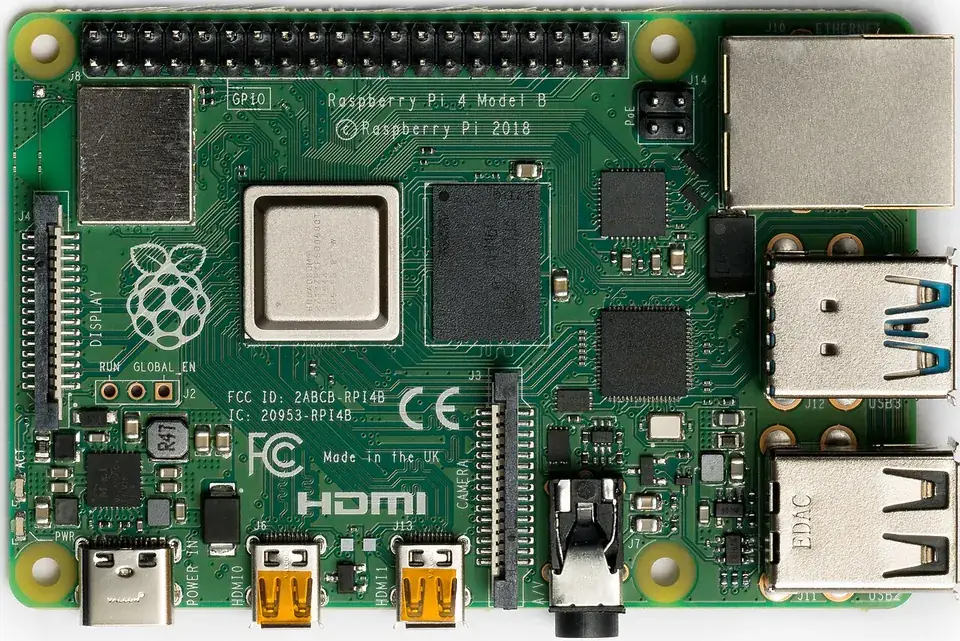
On the robot computer, the venv is where pyserial and friends live. Recreate it from requirements.txt instead of copying folders.
- On a Pi:
sudo apt install python3-venv, thenpython3 -m venv .venvinside the project. - Do not copy
.venv/from laptop to Pi — the CPU types differ (x86_64vsaarch64). Rebuild it withpip install -r requirements.txt. - Test the venv with
python -c "import serial; print(serial.__version__)".
Debugging
Debugging: when it doesn’t work
| Symptom | Likely cause | Fix |
|---|---|---|
externally-managed-environment | pip outside a venv (PEP 668) | source .venv/bin/activate first |
No module named venv / ensurepip is not available | python3-venv not installed | sudo apt install python3-venv |
| Package installed but import fails | Different Python is running | which python should point into .venv |
| Teammate gets other versions | No pinned requirements | pip freeze > requirements.txt and commit it |
Think
Think about it
Think
Your friend says, “I just installed everything with sudo pip, it works.” What problems might show up next month?
Experiment
Try it in the lab: activate, check, freeze
First see the PATH change in the simulator, then do it for real.
Experiment
Activate, check, freeze
You will need
- PATH lookup lab
- Ubuntu terminal with python3-venv (optional)
Steps
- In the lab, pick `python3` with the venv OFF. Note the winning folder.
- Turn the venv ON. Where was `.venv/bin` inserted in the PATH string? Which python3 wins now?
- Pick `pip` and compare OFF vs ON.
- On a real machine, run `venv_demo.sh`, then `which_env.py` inside and outside the venv.
- Install one package (`pip install pyserial`), `pip freeze`, and read the version line.
Interactive · PATH lookup lab (which program really runs?)
When you type a command, the shell walks the folders in $PATH from left to right and runs the first match — like a dabbawala stopping at the first pickup point that has your tiffin.
- 1. /home/ashish/.local/bin
your personal tools
✗ no python3 here — keep walking
- 2. /usr/local/bin
tools you installed by hand
✗ no python3 here — keep walking
- 3. /usr/bin
apt packages live here
✔ FOUND → runs this one
- 4. /bin
on Ubuntu this is a link to /usr/bin
not checked (search already stopped)
$ echo $PATH
/home/ashish/.local/bin:/usr/local/bin:/usr/bin:/bin
$ command -v python3
/usr/bin/python3

# runs: Python 3.12 (system — do not pip install here)
Try: pick robotctl and move /usr/bin above ~/.local/bin. Then pick python3 and toggle the venv.
Activation never copies Python or changes the system — it only reorders where the shell looks first.
Knowledge check
Check your understanding
Knowledge check
1. A Python virtual environment mainly provides…
2. `source .venv/bin/activate` mostly…
3. What should you commit to Git?
4. In `which_env.py`, `sys.prefix != sys.base_prefix` is True when…
5. `python3 -m venv .venv` fails with “ensurepip is not available” on Ubuntu. Fix?
Mini assignment
Hands-on assignment
Mini assignment
requirements stub
Give your robot project a proper venv and a reproducible requirements file.
Deliverables
- `.venv` created and `.venv/` in `.gitignore`
- `requirements.txt` with at least pyserial (and anything else you use)
- Output of `which_env.py` inside and outside the venv
- A 4-line README section: how a teammate rebuilds the venv
Do this, step by step
- Run
venv_demo.shand compare with the expected output. - Create
.venvin yourrobot_ws, activate it andpip install pyserial. - Run
which_env.pyinside and outside the venv; save both outputs. - Write
requirements.txtand a 4-line “rebuild the venv” README section.
Stuck? Hints, one at a time
- Hint 1: Activate:
source .venv/bin/activate; leave:deactivate. - Hint 2: Inside a venv,
which_env.pyshows the.venvpath andTrue. - Hint 3: README: clone →
python3 -m venv .venv→ activate →pip install -r requirements.txt.
Challenges (pick by level)
- 🟢 Easy: Run
pip listinside and outside the venv and compare. - 🟡 Medium: Pin an exact version (e.g.
pyserial==3.5) and rebuild the venv from scratch. - 🟠 Hard: Rebuild the same venv on a Pi and check
which_env.pythere.
Next step
Look back: Lesson 10: VS Code for Robotics. Next: Lesson 12: Networking Fundamentals. Related: Stage 2 — Modules, Packages & Environments.
Sources
- Python docs — venv
- pip — Requirements file format
- PEP 668 — externally managed environments
- Photos: Wikimedia Commons (credits under each image).
Self-attested for now — keep artifacts in your lab notebook.
Complete
Today's goal
0 of 1 done today
Mark this lesson complete when you have worked the experiment, knowledge check, and assignment (even roughly).