
Linux & Dev Environment · Lesson 02
Linux Terminal Fundamentals
Est. 35–45 min
Why
Why the terminal is your robot’s front counter
Every robotics session starts in a terminal: go to the project folder, start a driver, watch a log, SSH into the robot. In this lesson you learn to read the prompt, move around the file system, and use the shortcuts that make you quick.
Concept
The big idea: prompt, command, options, arguments
When you open a terminal you see a prompt. It tells you who you are, which machine you are on and where you are standing.
| Part | Meaning |
|---|---|
ashish | Your user name (whoami) |
@robot-lab | Machine name (hostname) — very useful when you SSH into the robot and forget which window is which |
~/robot_ws | Current directory. ~ is short for your home folder, /home/ashish |
$ | Normal user. A # means you are root (super-user) — be extra careful |
A command line has three parts: command, options (start with - or --) and arguments (what to act on).
ls -l /dev
ls= command (list)-l= option (long format)/dev= argument (which folder)
| Command | What it does | Robot example |
|---|---|---|
pwd | Print where you are | Am I in the robot workspace? |
ls / ls -l / ls -a | List files / long details / include hidden | Find bringup.sh, see .venv |
cd folder | Go into a folder | cd robot_ws/scripts |
cd .. | Go up one level | Back to the workspace root |
cd ~ or cd | Go home | Lost? Go home |
cd - | Jump back to the previous folder | Toggle between src and logs |
cat file | Print a file | Read config/robot.yaml |
clear (Ctrl+L) | Clean the screen | Before a demo |
man ls / ls --help | Built-in manual | What does -h do? |
history | Commands you typed earlier | Repeat yesterday’s bring-up |
How it works
How it actually works: shortcuts that save hours
Tab completion
Type
cd roband press Tab — bash completesrobot_ws/. Press Tab twice to see all choices. Fewer typos in long paths like/dev/ttyUSB0.Up arrow / history
Press ↑ to bring back the last command. Ctrl + R then type
bringsearches your history for the last bring-up command.Ctrl + C
Stops the program running in the foreground. Your first emergency brake for a runaway script (the real brake for motors is still the hardware e-stop).
Ctrl + L
Clears the screen but keeps history.
Copy and paste
In most Linux terminals it is Ctrl + Shift + C / Ctrl + Shift + V. Plain Ctrl + C means “stop”, not copy!
Visual
Visualise it: practise in a safe terminal
Practise pwd, ls, cd, cd .., cat, mkdir and touch on a fake robot home folder. Nothing here touches your real computer.
Interactive · Terminal simulator
# robotics workstation simulator
# try: pwd · ls · cd workspace · cat robot_controller.py
cwd: /home/robot · simulated only
Worked example
Worked example: walking through a workspace
Ravi opens a fresh terminal. Follow each line and predict the answer before reading the right column.
| Ravi types | Terminal answers | Why |
|---|---|---|
pwd | /home/ravi | Terminals start in your home folder |
ls | Downloads robot_ws | Two folders here |
cd robot_ws | (nothing) | Silence means success in Linux |
pwd | /home/ravi/robot_ws | He moved one level down |
cd .. | (nothing) | Up one level |
cd robot | bash: cd: robot: No such file or directory | Typo — Tab completion would have saved him |
Code lab
Code lab: your first walk (safe, inside /tmp)
Save this as terminal_basics.sh and run bash terminal_basics.sh. It only creates folders under /tmp/aihub-lab, a scratch area that is cleared on reboot.
#!/usr/bin/env bash
# terminal_basics.sh — first walk around the terminal (Lesson 2)
# Safe: it only creates folders inside /tmp/aihub-lab
mkdir -p /tmp/aihub-lab/robot_ws/src /tmp/aihub-lab/robot_ws/logs
cd /tmp/aihub-lab
pwd
ls
cd robot_ws
pwd
ls
cd ..
pwd
echo "Namaste from $(basename "$PWD")"
Expected output
/tmp/aihub-lab
robot_ws
/tmp/aihub-lab/robot_ws
logs
src
/tmp/aihub-lab
Namaste from aihub-lab
Real world
Where you will use this every single day
- On a Jetson you
cd ~/robot_ws,ls scripts/and start./scripts/bringup.sh. - During a demo you keep one terminal for the controller and another for logs — the prompt’s hostname tells you which is the robot.
- When something breaks at 11 pm before a college project review,
history | grep bringupfinds the exact command that worked yesterday.
Mistakes
Common mistakes and debugging
Hardware & safety
Hardware lab and safety notes
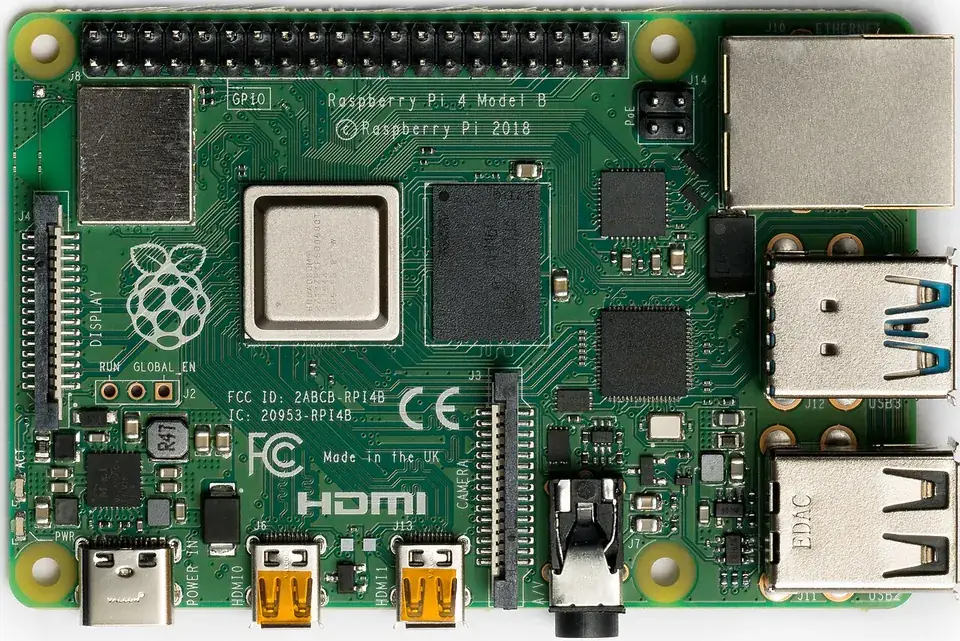
The terminal is how you will talk to a Raspberry Pi or Jetson that has no screen. Practise the same commands on real hardware when you can.
- On a Pi:
ls /devonce, plug an Arduino in,ls /devagain — spot the newttyACM0. - Use
historyto see what you typed on the robot yesterday. - Never paste a command from the internet that starts with
sudountil you understand every word of it.
Debugging
Debugging: when it doesn’t work
| Symptom | Likely cause | Fix |
|---|---|---|
command not found | Typo, or the tool is not installed | Check spelling; press Tab to complete; install with apt (Lesson 6) |
No such file or directory | Wrong folder or wrong name (Linux names are case-sensitive) | Run pwd and ls; Robot.py and robot.py are different files |
Prompt shows > and waits | Unclosed quote " or ' | Press Ctrl + C and retype the line |
| Copy-paste does nothing | Terminal uses Ctrl + Shift + C / V | Use Ctrl + Shift + V to paste in the Ubuntu terminal |
Think
Think about it
Think
Your script opens `config/robot.yaml` (a relative path). It works when you run it from `~/robot_ws` but fails from `~`. Why?
Experiment
Try it in the lab: terminal drills
Use the simulator above. Say each command’s meaning aloud before you press Enter.
Experiment
Terminal drills
You will need
- Terminal simulator
- Notebook
Steps
- Run `pwd`, then `ls`. Write down the folders you see.
- `cd logs`, then `pwd` again. Notice the path grew by one folder.
- `cd ..` and `cat robot_controller.py`. Find the stop distance in the file.
- `cd workspace/scripts` and `cat bringup.sh`.
- Type a command that is not allowed (for example `rm`) and read how the whitelist rejects it.
Interactive · Terminal simulator
# robotics workstation simulator
# try: pwd · ls · cd workspace · cat robot_controller.py
cwd: /home/robot · simulated only
The cwd: line under the simulator always shows where you stand. If cat says “No such file”, run ls first — you are probably in the wrong folder.
Knowledge check
Check your understanding
Knowledge check
1. `pwd` tells you…
2. `cd robot_ws` then `ls` is useful to…
3. If a command is not on the simulator whitelist…
4. In `ls -l /dev`, the `-l` part is…
5. In a Linux terminal, Ctrl + C usually…
Mini assignment
Hands-on assignment
Mini assignment
Command cheat card
Make a pocket cheat card you will actually keep next to your laptop.
Deliverables
- Ten commands from this lesson, each with one robotics example
- The prompt `ashish@robot-lab:~/robot_ws$` labelled part by part
- Three keyboard shortcuts you will use daily
Do this, step by step
- In the simulator, run
pwd,ls,cd robot_ws,ls -landcd ..; write each answer. - On a real terminal, run
terminal_basics.shand compare with the expected output. - Press ↑ three times, then try Tab completion on a long folder name; note what happened.
- Make your cheat card: 10 commands, each with one robotics use.
Stuck? Hints, one at a time
- Hint 1:
pwd= where am I;ls= what is here;cd= go there. Every other command builds on these three. - Hint 2: Label the prompt
ashish@robot-lab:~/robot_ws$as user @ host : folder, with$meaning a normal (non-root) user. - Hint 3: Good robotics uses:
tail -ffor live logs,ls /devfor ports,catfor a config file.
Challenges (pick by level)
- 🟢 Easy: Use
man lsto find the option that sorts by time; try it. - 🟡 Medium: Create
~/robot_ws/notes.txtwithechoand>>and read it back withcat. - 🟠 Hard: Use
history | grep cdto find every folder you visited today.
Next step
Look back: Lesson 1: Why Linux for Robotics. Next: Lesson 3: Files & Directories. Related: Stage 2 — Python Fundamentals.
Sources
- Ubuntu tutorial — The Linux command line for beginners
- bash(1) manual page
- ls(1) manual page
- Photos: Wikimedia Commons (credits under each image).
Self-attested for now — keep artifacts in your lab notebook.
Complete
Today's goal
0 of 1 done today
Mark this lesson complete when you have worked the experiment, knowledge check, and assignment (even roughly).