
Linux & Dev Environment · Lesson 12
Networking Fundamentals
Est. 40–50 min
Why
Why your laptop and robot must find each other
Remote control, SSH, ROS 2 topics between laptop and robot, camera streams — all of it rides on this. When “it does not connect”, the cause is almost always one of: wrong address, different network, wrong port, or a firewall.
Concept
The big idea: IP address = flat number, port = which person inside
| Word | Society analogy | Example |
|---|---|---|
| IP address | Flat number | 192.168.1.42 |
| Subnet (/24) | Same society — first three numbers match | 192.168.1.0/24 = 192.168.1.1 … 192.168.1.254 |
| Router / gateway | Main gate | Often 192.168.1.1 |
| Port | Intercom extension inside the flat | 22 (SSH), 80/443 (web), 5005 (your app) |
| localhost / 127.0.0.1 | Talking to someone in your own flat | Test a server on the same machine |
| Hostname / DNS | Name on the society directory | jetson.local → 192.168.1.42 |
| DHCP | Society office assigning flat numbers | Router gives the robot an IP when it joins |
- Private ranges (used inside homes, labs, colleges):
10.x.x.x,172.16–31.x.x,192.168.x.x. They are not reachable directly from the internet. - Same subnet means devices can talk directly.
192.168.1.10and192.168.0.42are in different societies — they need a router between them. - DHCP addresses can change. For a robot, ask the router for a reserved (fixed) address or use the hostname.
| Command | Answers the question |
|---|---|
ip -brief addr (or hostname -I) | What is MY IP address? |
ip route | Where is my main gate (default gateway)? |
ping -c 3 192.168.1.42 | Can I reach the robot at all? |
ss -tln | Which ports is THIS machine listening on? |
ping -c 3 jetson.local | Does the name resolve? (mDNS, often works on Ubuntu/Jetson) |
How it works
How it actually works: a message from laptop to robot
Your app opens a connection
Python asks the OS: connect to 192.168.1.42, port 5005.
Same society?
The OS compares the address with its own subnet (192.168.1.0/24). Same → send directly over Wi-Fi/Ethernet. Different → hand it to the gateway.
Delivery
The robot’s network card receives the packet; its OS checks which program is listening on port 5005.
Answer
That program replies to your laptop’s address and a temporary port your OS picked. You now have a two-way conversation (TCP).
No listener?
“Connection refused” = robot reachable, but nothing on that port. “Timed out” = packet never arrived (wrong IP, other network, firewall).
Visual
Visualise it: laptop ↔ robot on one LAN
A simulated LAN with your laptop and a Jetson at 192.168.1.42. Try hostname and whoami on each side and see which machine answers.
Interactive · Robot network & SSH
# robot network lab — simulated LAN only
# laptop (dev) ↔ Jetson (on-robot computer)
# try: ssh robot@192.168.1.42
Worked example
Worked example: “I can’t reach the robot”
| Step | Command / check | Kavya finds |
|---|---|---|
| 1 | ip -brief addr on the laptop | wlan0 192.168.0.15/24 |
| 2 | Robot’s IP (from its screen or router page) | 192.168.1.42 |
| 3 | Compare the first three numbers | 192.168.0 vs 192.168.1 — different networks! |
| 4 | Laptop was on the guest Wi-Fi | Switch to the lab Wi-Fi |
| 5 | ping -c 3 192.168.1.42 | Replies come back — now SSH will work |
Code lab
Code lab: same network? and a tiny PING/PONG
Python’s built-in ipaddress module answers the “same society?” question, and socket lets two programs talk over a port. Here both “laptop” and “robot” run on your own machine through 127.0.0.1, so it works anywhere — no robot needed.
# net_basics.py — same network? and a tiny PING/PONG over a TCP port (Lesson 12)
import ipaddress
import socket
import threading

lan = ipaddress.ip_network("192.168.1.0/24")
for host in ["192.168.1.10", "192.168.1.42", "192.168.0.42"]:
    print(f"{host:13} in {lan}? {ipaddress.ip_address(host) in lan}")

# A mini "robot" server on this same computer (127.0.0.1 = localhost), port 5005
srv = socket.socket()
srv.setsockopt(socket.SOL_SOCKET, socket.SO_REUSEADDR, 1)
srv.bind(("127.0.0.1", 5005))
srv.listen(1)

def robot():
    conn, _ = srv.accept()
    with conn:
        if conn.recv(16) == b"PING":
            conn.sendall(b"PONG from robot")

threading.Thread(target=robot, daemon=True).start()
with socket.create_connection(("127.0.0.1", 5005), timeout=2) as laptop:
    laptop.sendall(b"PING")
    print("laptop got:", laptop.recv(32).decode())
srv.close()
Expected output
192.168.1.10  in 192.168.1.0/24? True
192.168.1.42  in 192.168.1.0/24? True
192.168.0.42  in 192.168.1.0/24? False
laptop got: PONG from robot
Real world
Where networking shows up in robotics
- Laptop and Jetson on the same router: SSH, file sync and ROS 2 traffic all work directly.
- A web dashboard on the robot at
http://192.168.1.42:8080(IP + port). - ROS 2 discovery uses the local network; robots on the same network with the same
ROS_DOMAIN_IDsee each other. - Camera streams use a lot of bandwidth — Ethernet is more reliable than crowded Wi-Fi for demos.
Mistakes
Common mistakes and debugging
Hardware & safety
Hardware lab and safety notes
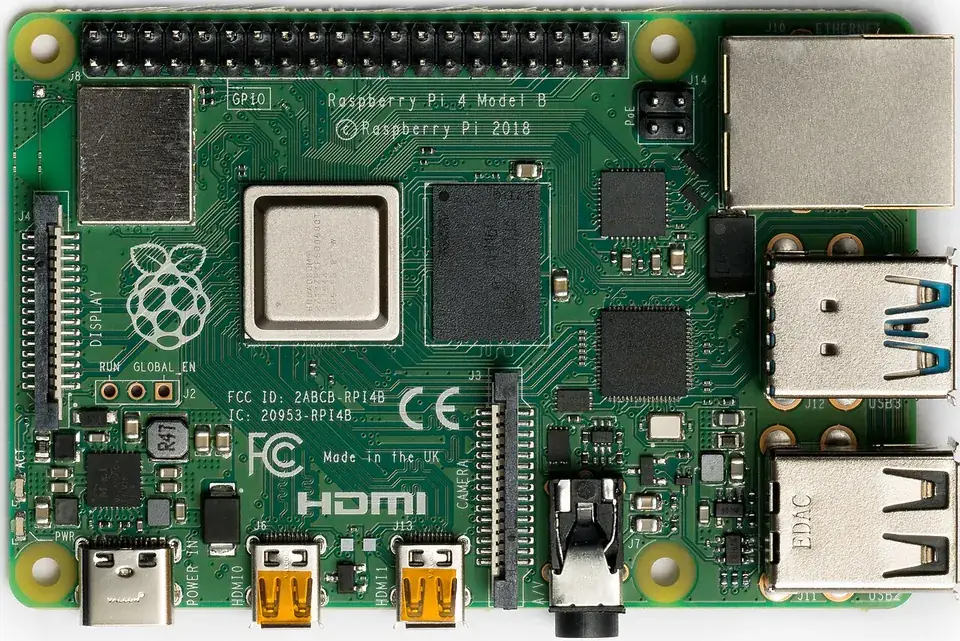
Your laptop and the robot computer must be on the same network before anything else works.
- Put the laptop and Pi/Jetson on the same Wi-Fi router (or one Ethernet switch).
- Find the robot’s IP with
hostname -Ion the robot, or in the router’s client list. - College and office Wi-Fi often block device-to-device traffic (“client isolation”); a small dedicated router or phone hotspot avoids this.
Debugging
Debugging: when it doesn’t work
| Symptom | Likely cause | Fix |
|---|---|---|
ping times out | Different subnets or client isolation | Compare ip a on both; use the same router |
Connection refused | Right machine, nothing listening on that port | Start the server; check the port number |
Name or service not known | .local name not resolving | Use the IP address; install avahi on the robot |
| Worked yesterday, not today | Router gave a new IP (DHCP) | Check hostname -I again or reserve the IP in the router |
Think
Think about it
Think
Your laptop is 192.168.1.10/24 and the robot is 192.168.0.42/24. Can they talk directly?
Experiment
Try it in the lab: find and reach the robot
Use the simulated LAN, then try the real commands on your laptop.
Experiment
Find and reach the robot
You will need
- Robot network simulator
- Optional: laptop + Raspberry Pi / Jetson on the same Wi-Fi
Steps
- In the simulator, run `hostname` and `whoami` on the laptop side.
- Connect with `ssh robot@192.168.1.42`, run `hostname` again. What changed?
- Type `exit` and confirm you are back on the laptop.
- On your real laptop run `ip -brief addr` and `ip route`. Write your IP and gateway.
- Run `net_basics.py`. Then change one host to `10.0.0.5` and predict the result before running.
Interactive · Robot network & SSH
# robot network lab — simulated LAN only
# laptop (dev) ↔ Jetson (on-robot computer)
# try: ssh robot@192.168.1.42
The prompt and hostname tell you which machine you are on. Mixing up terminals is the most common networking “bug” of all.
Knowledge check
Check your understanding
Knowledge check
1. An IP address on a LAN is like…
2. A port number identifies…
3. 127.0.0.1 always means…
4. “Connection refused” most likely means…
5. Which of these is a private (LAN) address?
Mini assignment
Hands-on assignment
Mini assignment
Lab network sketch
Draw and document your robot lab network.
Deliverables
- Sketch: router, laptop, robot computer, with IPs, subnet and gateway
- Which ports each machine uses and for what (at least SSH)
- A 5-step “can’t connect” checklist in your own words
- Output of net_basics.py with one host you changed
Do this, step by step
- In the network lab, ping the Jetson and SSH into it; run
hostnameon each side. - Run
net_basics.py, then change one host to10.0.0.5and predict the result first. - Run
ip aon your laptop and write your IP, subnet and gateway. - Draw the lab network sketch and your 5-step “can’t connect” checklist.
Stuck? Hints, one at a time
- Hint 1: In
ip a, look forinet 192.168.x.y/24underwlan0oreth0. - Hint 2: /24 means the first three numbers must match to be on the same subnet.
- Hint 3: Checklist order: same network? → ping → right IP? → port open? → firewall?
Challenges (pick by level)
- 🟢 Easy:
ping -c 3your router (gateway) and note the time in ms. - 🟡 Medium: Use Python
ipaddressto check if two IPs are in the same /24. - 🟠 Hard: Run a tiny TCP echo server on one machine and connect from the other.
Next step
Look back: Lesson 11: Python Virtual Environments. Next: Lesson 13: SSH & Remote Robotics Development. Related: Stage 10 — ROS 2 (ROS 2 nodes on different machines talk over this network).
Sources
- RFC 1918 — Private address space
- Python docs — socket
- Python docs — ipaddress
- ip(8) manual page
- Photos: Wikimedia Commons (credits under each image).
Self-attested for now — keep artifacts in your lab notebook.
Complete
Today's goal
0 of 1 done today
Mark this lesson complete when you have worked the experiment, knowledge check, and assignment (even roughly).